:::: MENU ::::

Monday, May 11, 2015

In my last post we explored how to use the environment tag helper to generate different HTML for Development versus Production environments in ASP.NET MVC6. I very briefly touched on the link and scripttag helpers. In this post, we will dig into the details of these very useful tag helpers.

Overview

The link and script tag helpers are intended to make it easier for us to add link and script tags to our HTML. In particular, these tag helpers simplify the process of referencing a large number of files in a development environment, referencing CDNs with local fallbacks and cache busting.

Globbing

No, I’m not making up words. Globbing is a way to specify sets of filename using wildcard patterns. In a very simple example, we could specify all the JavaScript files in a particular folder by specifying the pattern/scripts/*.js. This pattern, however, would not include any of the files in sub-directories. This is where globbing gets more interesting. We can include all JS files in a folder and all subfolders by specifying the pattern/scripts/**/*.js.
That’s nice, but how does this relate to the link and script tag helpers? Well, imagine you are building an web application that consists of a very large number of JavaScript files. When running in production, you will probably want to combine all those files into a single file, but in a development environment it can be convenient to reference each individual file. Remembering to add a new script tag every time you add a new JavaScript file can be tedious and error prone. The script tag helper lets you specify glob patterns for all the files that you want to include.
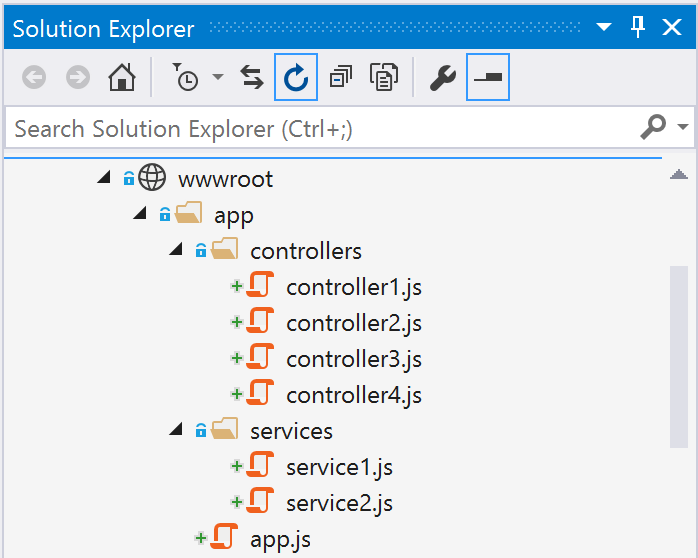
We could include all the individual script files above using a single script tag helper as follows:
<script asp-src-include="~/app/**/*.js"></script>
Which will generate the following HTML:
<script src="/app/app.js"></script>
<script src="/app/controllers/controller1.js"></script>
<script src="/app/controllers/controller2.js"></script>
<script src="/app/controllers/controller3.js"></script>
<script src="/app/controllers/controller4.js"></script>
<script src="/app/services/service1.js"></script>
<script src="/app/services/service2.js"></script>
There is also src-exclude attribute if there were a set of files you wanted to exclude from the list. For example, to exclude the services scripts in the example above, we would use the following:
<script asp-src-include="~/app/**/*.js" 
        asp-src-exclude="~/app/services/**/*.js">
</script>

The nice thing about using a glob pattern is that we don’t need to remember to update our HTML every time we add or remove a JavaScript file to our application.
The link tag helper works in exactly the same way with the asp-href-include and asp-href-exclude attributes.

CDNs and Fallbacks

It is a common approach to reference popular frameworks from hosted CDN in order to reduce network load on your server and potentially improve performance for the end user. For popular frameworks like jQuery and Bootstrap, there is a good chance that the browser will already have a cached version of these files.
Referencing files from a CDN can be a bit of a pain because you also need to provide a fallback to a version of the file hosted on your servers. A fallback is necessary because you do not want your application to go down just because the CDN is not currently reachable.
The script and link tag helpers make it easier to specify a fallback test and file location. Here is a basic example for the popular Bootstrap framework:
<link rel="stylesheet" href="//ajax.aspnetcdn.com/ajax/bootstrap/3.0.0/css/bootstrap.min.css"
      asp-fallback-href="~/lib/bootstrap/css/bootstrap.min.css"
      asp-fallback-test-class="hidden" 
      asp-fallback-test-property="visibility" 
      asp-fallback-test-value="hidden" />
 
<script src="//ajax.aspnetcdn.com/ajax/bootstrap/3.0.0/bootstrap.min.js"
        asp-fallback-src="~/lib/bootstrap/js/bootstrap.min.js"
        asp-fallback-test="window.jQuery">
</script>

Which is infinitely cleaner than manually writing the following HTML that gets generated by the tag helpers:
<link rel="stylesheet" href="//ajax.aspnetcdn.com/ajax/bootstrap/3.0.0/css/bootstrap.min.css" />
<meta name="x-stylesheet-fallback-test" class="hidden" /><script>!function(a,b,c){var d,e=document,f=e.getElementsByTagName("SCRIPT"),g=f[f.length-1].previousElementSibling,h=e.defaultView&&e.defaultView.getComputedStyle?e.defaultView.getComputedStyle(g):g.currentStyle;if(h&&h[a]!==b)for(d=0;d<c.length;d++)e.write('+c[d]+'"/>')}("visibility","hidden",["\/lib\/bootstrap\/css\/bootstrap.min.css"]);</script>
 
<script src="//ajax.aspnetcdn.com/ajax/bootstrap/3.0.0/bootstrap.min.js">
</script>
<script>(typeof($.fn.modal) === 'undefined'||document.write("
Note: This article was written using MVC6 beta4 using Visual Studio 2015 RC. There is a good chance that some of this will change before the final version is released
Bundling and minification is an important optimization technique for managing scripts and stylesheets in any web application. ASP.NET 5 and MVC6 take a different approach than previous versions to solving this problem. In this post I will illustrate the new approach using a simple example.

How it worked before

In previous versions of MVC, bundling and minification were handled by configuring bundles in the web optimization framework. You would define named bundles of JavaScript or CSS code in a BundleConfig class. Let’s take a simple example where the styles for our application are split into 2 separate files. The style bundle would be defined as follows:
bundles.Add(new StyleBundle("~/Content/css").Include(
        "~/Content/site1.css",
        "~/Content/site2.css"));

In your razor view, you could reference a bundle using the @Scripts and @Styles helpers. If you were running the application in a Debug mode, the @Scripts helper would add individual script references for each file in a bundle. Likewise, the @Styles helper would render individual links to each CSS file in the bundle.
For example, the following code:
@Styles.Render("~/Content/css")
would render the following HTML when executed in a debug mode:
<link href="/Content/site1.css" rel="stylesheet"/>
<link href="/Content/site2.css" rel="stylesheet"/>
In a Release mode the web optimization framework would optimize the bundles by generating a single combined and minified file for each bundle that is referenced. The same example above in a release configuration would render the following HTML:
<link href="/Content/css?v=NNbQGTaB9DsVxla4W-u6EqSVahvQb1lT0FjAB1yOkvo1" rel="stylesheet"/>
Testing the optimized and non-optimized versions in Visual Studio was relatively easy. You could turn debug mode on/off from the web.config or manually override turn optimization on/off by setting the BundleTable.EnableOptimizations value at application startup.

How it works in MVC6

The first big change is that the bundling and minification steps happen at build time instead of run time.

Optimizing assets

In previous versions, the optimized file was created on the fly by the web optimization framework. In MVC6, you are expected to manage bundling and minification using a task runner like Grunt or Gulp. One of the big advantages to using a task runner for bundling and minification is that we have access to a vast number of existing tasks from the grunt and gulp ecosystems.
The default MVC6 project template uses Gulp so I will use that to show how accomplish this.
First, we will add 2 node packages for the gulp package to bundle (gulp-concat) and minify CSS (gulp-minify-css) files. Add these to the package.json file:
{
  "name": "ASP.NET",
  "version": "0.0.0",
  "devDependencies": {
    "gulp": "3.8.11",
    "gulp-concat": "2.5.2",
    "gulp-minify-css": "1.1.1",
    "rimraf": "2.2.8"
  }
}
Next, include these 2 packages in gulpfile.js. Node packages are included in a gulp file using requirejs:
var gulp = require("gulp"),
    minifycss = require("gulp-minify-css"),
    concat = require("gulp-concat");

Finally, add a gulp task to combine and minify any CSS files from the css folder.
gulp.task("minifycss", function () {
    return gulp.src([ paths.css + "/*.css",
                     "!" + paths.css + "/*.min.css"])
            .pipe(minifycss())
            .pipe(concat("site.min.css"))
            .pipe(gulp.dest(paths.css));
});

You can run this task manually from the command line by calling gulp minifycss:
Another way to run it is using the Task Runner Explorer. Launch the Task Runner Explorer by right clickinggulpefile.js in the Solution Explorer and selecting Task Runner Explorer. From the task runner explorer window, you can run any task by right clicking it and selecting Run.
Important: You can (and should) also configure these tasks to run automatically whenever you change the source css files. See my previous post on using Gulp in Visual Studio for more details on this.
The process for optimizing JavasScript files is very similar to the process for CSS, but we use gulp-uglify instead of gulp-minify-css. We will explore the JavaScript scenario further in the next post.
Now our wwwroot folder contains both optimized and non-optimized versions of our CSS:

Of course, this is just an very simple example of how you might choose to optimize your files. The process is entirely up to you and very flexible. I encourage  you to explore the vast set of plugins available.

Managing Development vs Production environments

In previous version of MVC, the @Scripts and @Styles helpers would decide when to reference all the un-optimized files and when to reference the auto-generated optimized versions. The Debug vs Release configuration was used to determine when to use the optimized versions. While this was ultimately convenient from a developer perspective, it was never very clear what was happening. When looking at the razor view, it was hard to tell what has happening.
The recommended approach in MVC6 is to use the ASPNET_ENV environment variable instead of debug/release configurations to decide which files to reference. Typical values for ASPNET_ENV are Development, Staging and Production. The default when running MVC6 from Visual Studio is Development. You can see this by viewing the Properties of your MVC project file in Visual Studio.

In your Razor view, you can use the environment tag helper to decide how to reference your scripts and stylesheets based on the current ASPNET_ENV value. The link tag helper is used to append a version to the minified file name in Staging and Production. This technique is often called cache busting. A similar script tag helper exists for referencing script files.
<environment names="Development">            
    <link rel="stylesheet" href="~/css/site1.css" />
    <link rel="stylesheet" href="~/css/site2.css" />
</environment>
<environment names="Staging,Production">
    <link rel="stylesheet" href="~/css/site.min.css" asp-file-version="true"/>
</environment>
Learn more about tag helpers here
Looking at this razor code, it is much more obvious how a file will be reference in Development vs Staging/Production. In Development, the HTML is as follows:
<link rel="stylesheet" href="/css/site1.css" />
<link rel="stylesheet" href="/css/site2.css" />
In Staging and Production, the HTML is as follows:
<link rel="stylesheet" href="/css/site.min.css?v=UdxKHVNJA5vb1EsG9O9uURFDfEE3j1E3DgwL6NiDGMc" />

Testing Production from Visual Studio

To test Staging or Production builds from Visual Studio, you need to create a new debug profile and set the ASPNET_ENV environment variable to the desired value.
Here are some simple steps to create a Production profile:
  1. Right click on your project in Solution Explorer and select Properties.
  2. Select the Debug tab
  3. Click New… to create a new profile and enter ‘IIS Express – Prod” for the name.
  4. For Launch, select IIS Express
  5. Add a new Environment Variable with name ASPNET_ENV and value Production Save your project.

Now, from the Run menu in Visual Studio, you can select the IIS Express – Prod profile to run and test your application using the optimized versions of scripts and styles.

Conclusion

While this new approach for web optimization in MVC6 may seem like a little more work than in previous versions, it does provide much more flexibility and in my opinion aligns better with the majority of the web development world.
We very briefly touched on the link and script tag helpers.